#Plugin Installation
Let's get started with installing EOS Integration Kit into your projects, which would be the easiest step, hopefully.
📢 Important Precaution
To ensure seamless integration with the EOS Integration Kit, it is recommended to deactivate the default EOS plugins bundled with the Unreal Engine to avoid any potential conflicts.
#Marketplace Edition
So firstly, if you are using the marketplace version, thanks for the purchase 🫡 If you have bought the plugin, go the Epic Launcher and follow the below steps ->
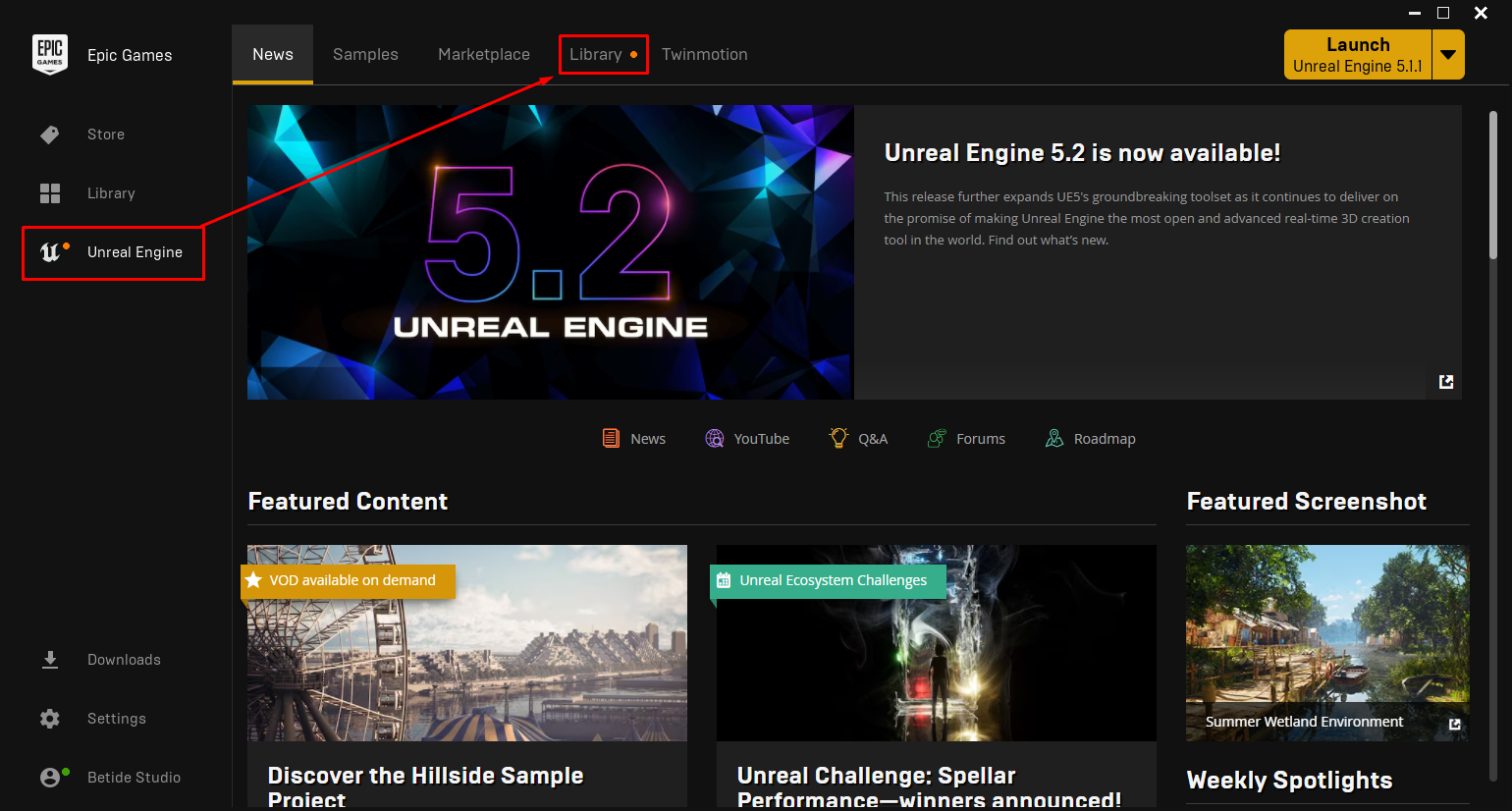
- Open Library in the Unreal Engine Section of the Epic Launcher
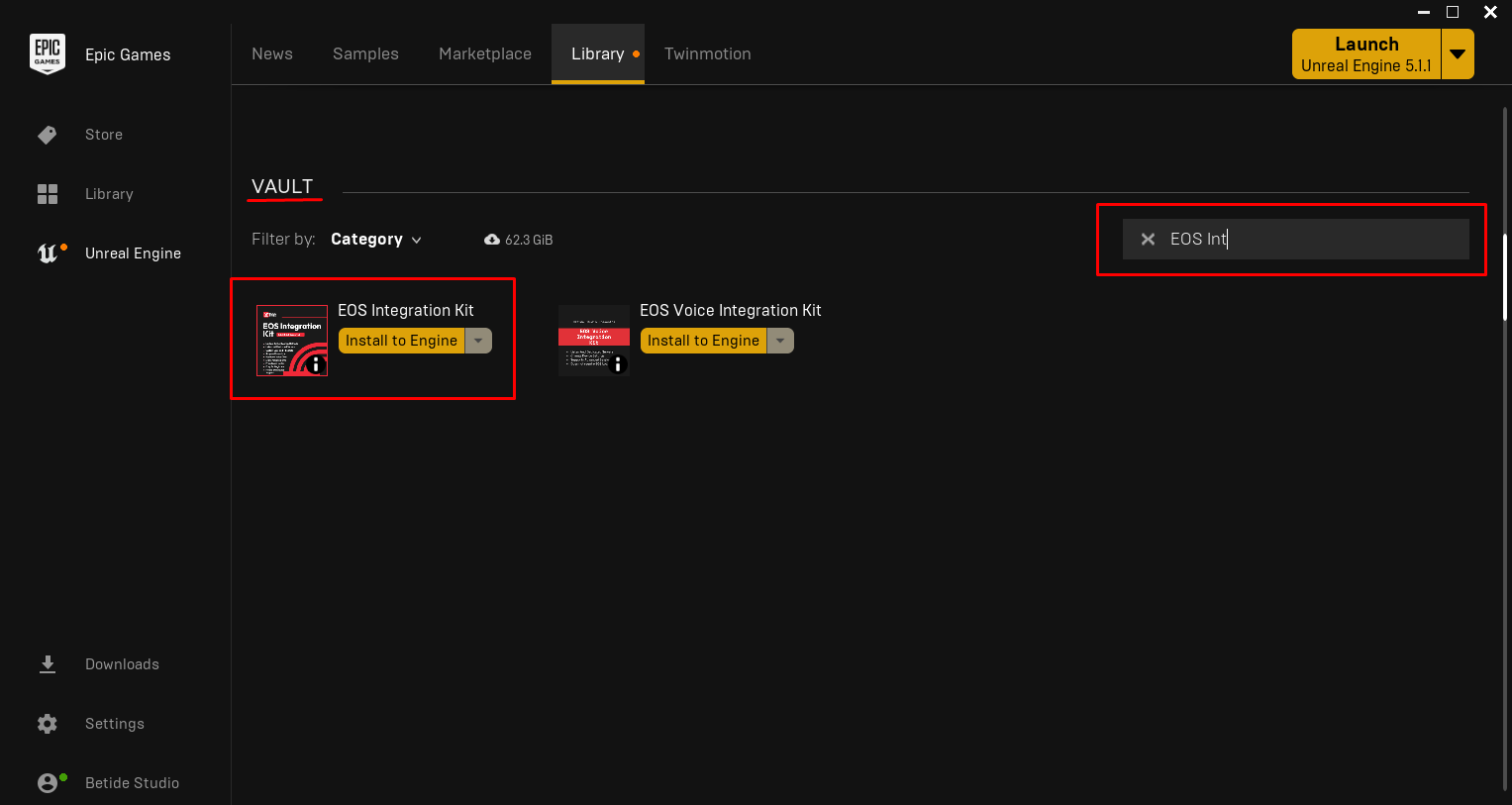
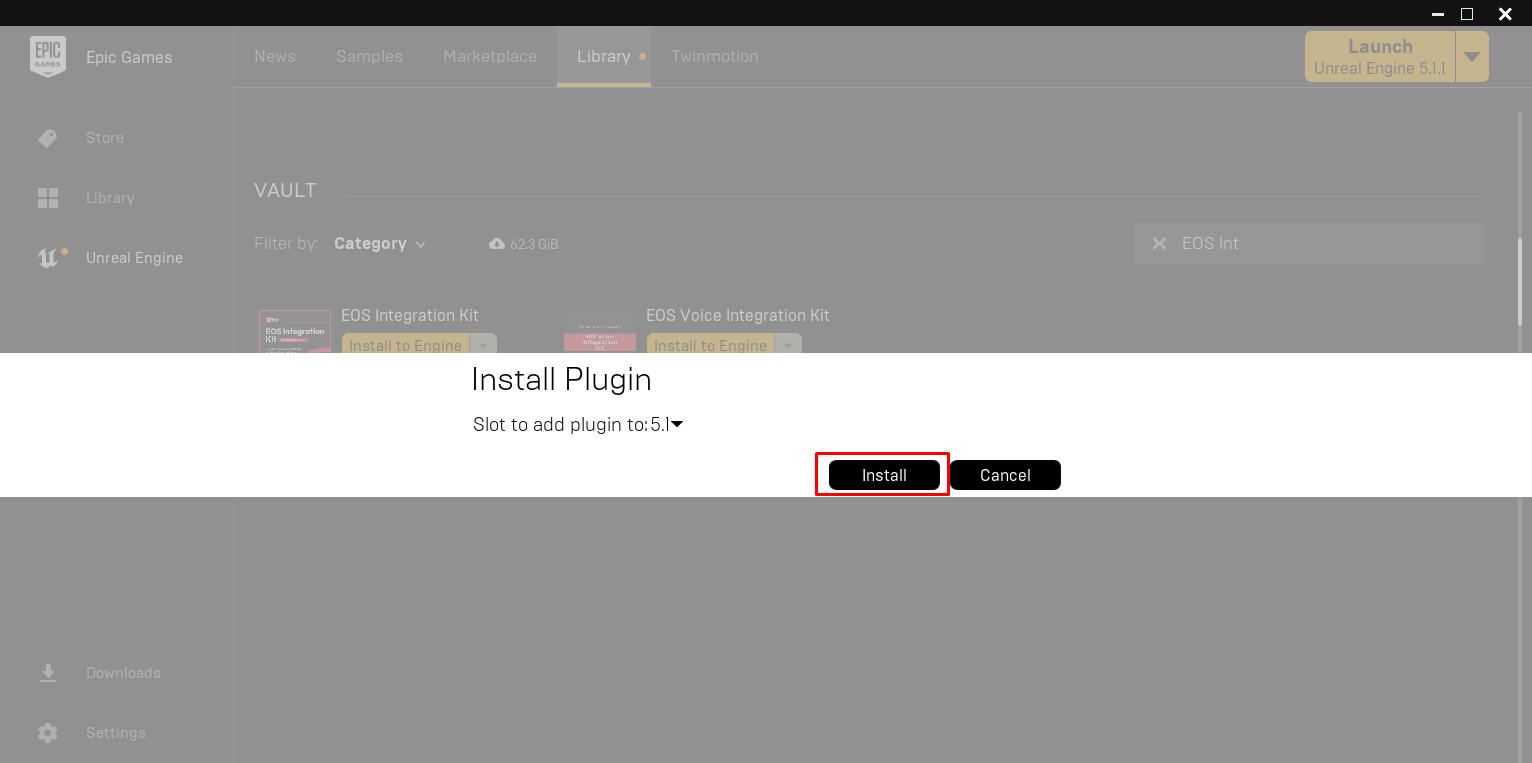
- Check Valut and install the plugin for the version you want to use
- Now open or create a project with the same Unreal Engine Version and go to the Plugins section.
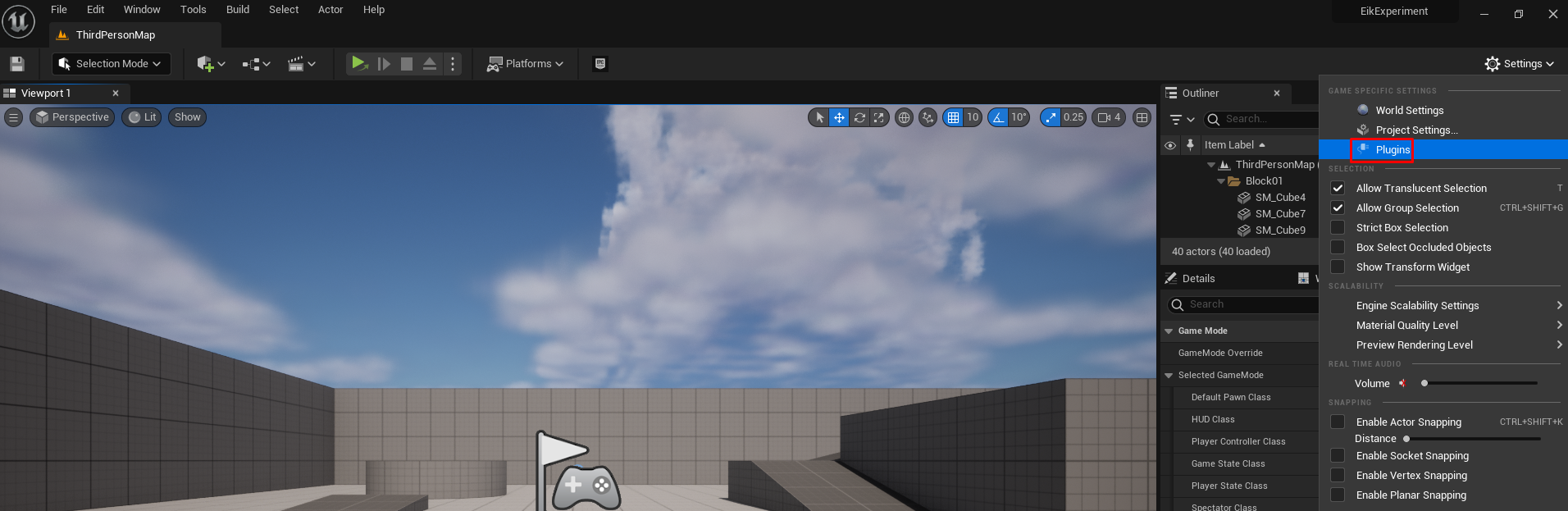
- Enable the Plugin and Restart the Editor

Done, now you have the plugin ready and are ready to move to the next step 🤝
#Github Edition
📢 Important Note
Because we recieved a DMCA takedown notice from Epic Games, we are no longer able to provide the Epic Online Services SDK with the plugin. You will need to download the SDK from the Epic Games Dev Portal and follow the steps below to integrate it with the plugin.
This is also the reason why the Releases section on GitHub is not up to date.
While we do our best to ensure that the latest release is available in a pre-built format on GitHub, there may be times we are not able to update the release in a timely manner, or you may want to run the latest codebase outside of an official release. These steps will walk you through how to download the latest code changes and build your plugin from source.
- Download the latest source files from GitHub
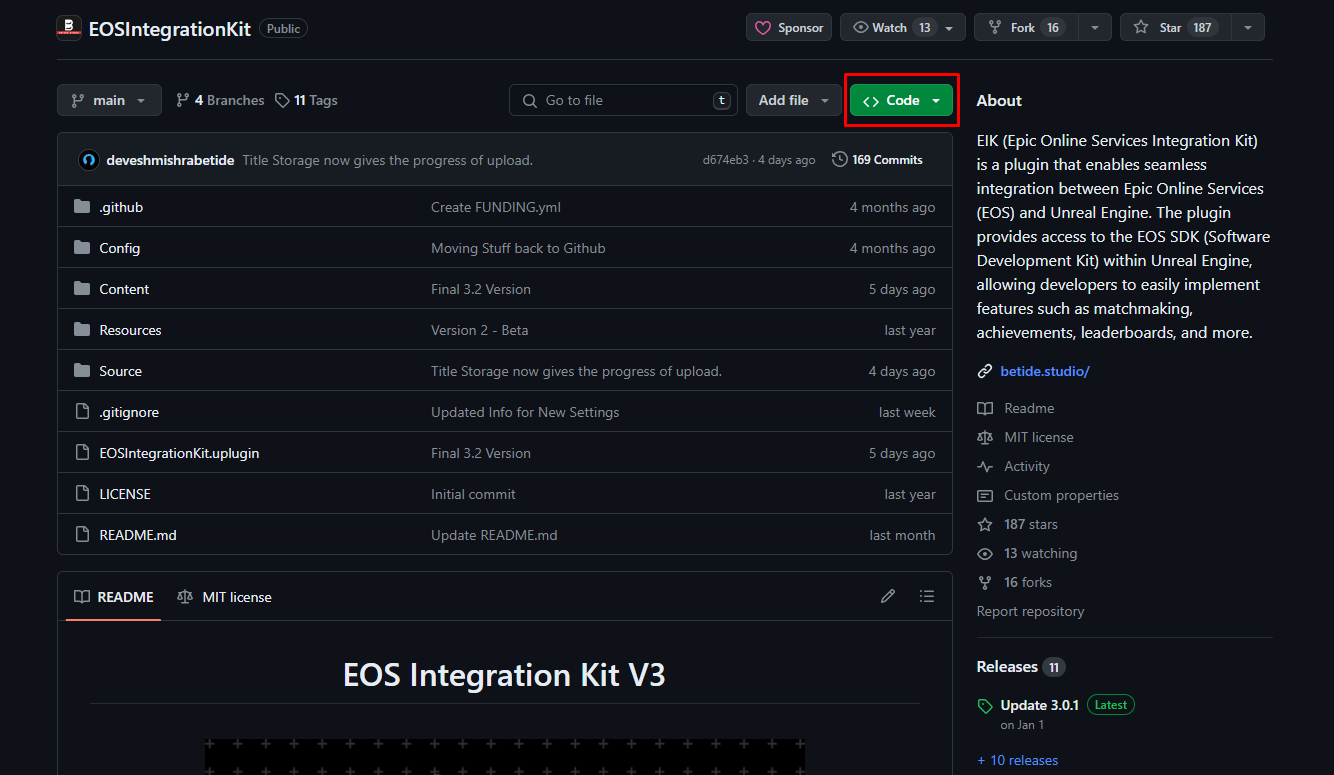
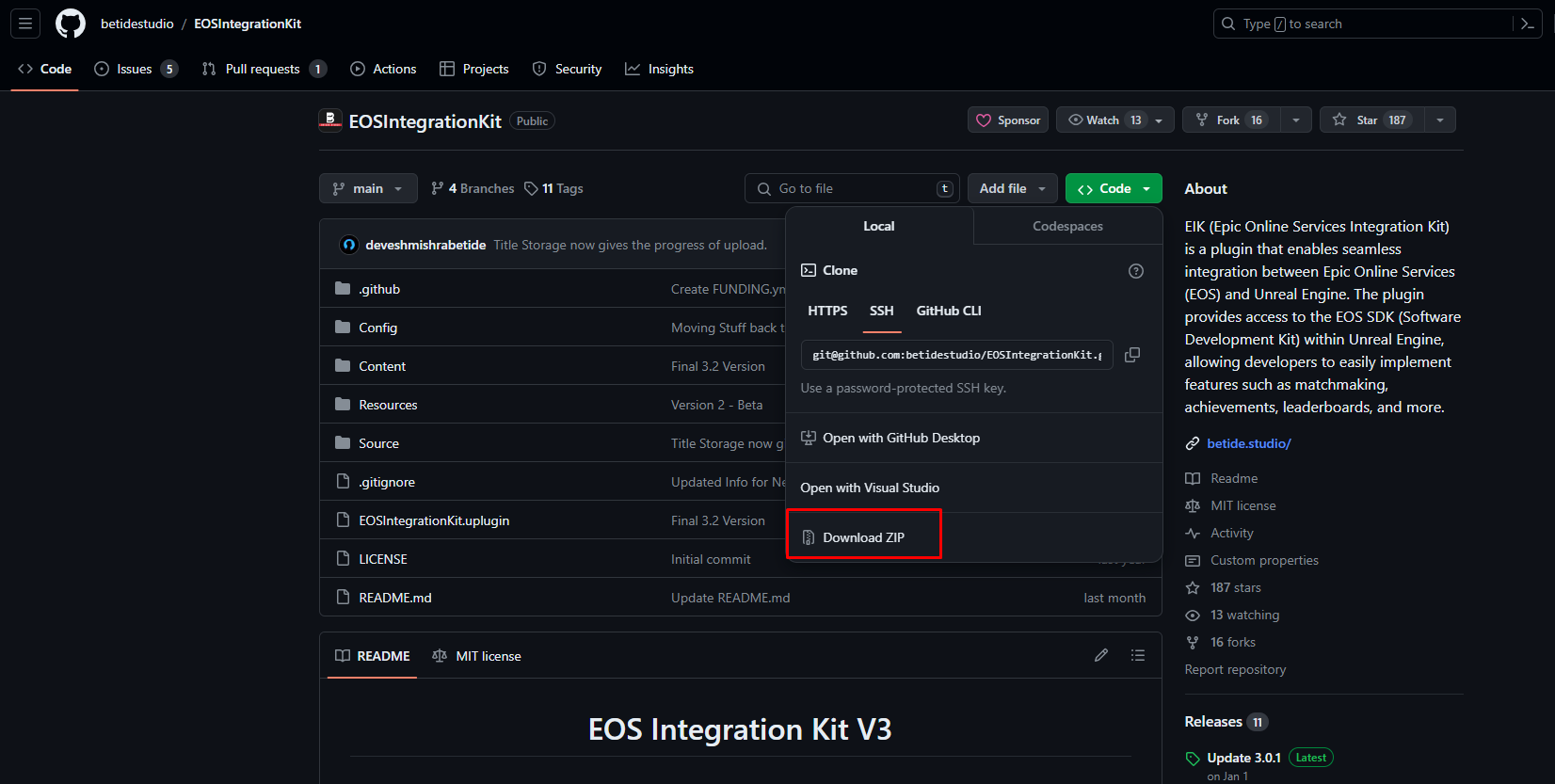
- Once downloaded, open the file
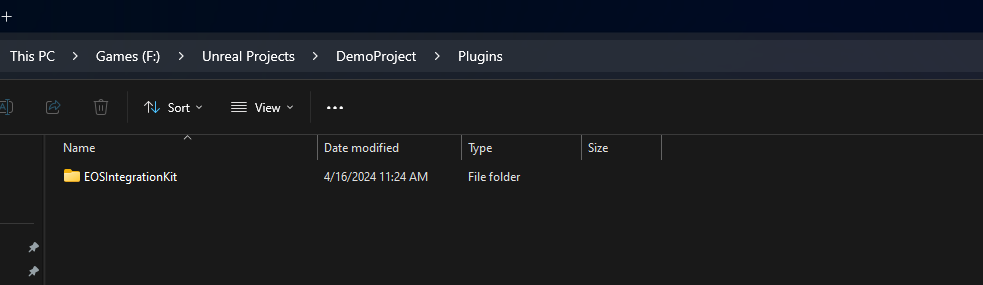
EOSIntegrationKit-main.zipand extract it into your ProjectsPluginsdirectory. Rename the file toEOSIntegrationKit
- Download the Epic Online Services SDK
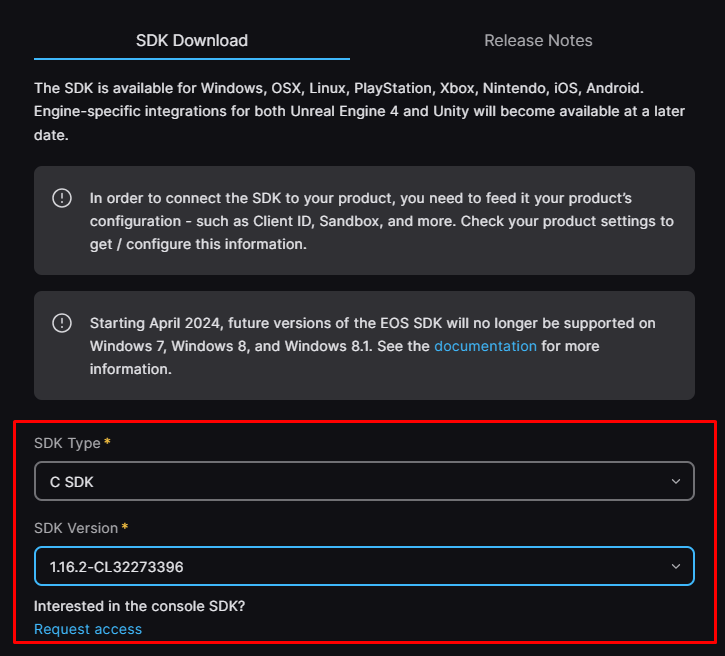
The EOS SDK can be downloaded from the Epic Games Dev Portal
Once logged into the Dev Portal, click SDK & Release Notes
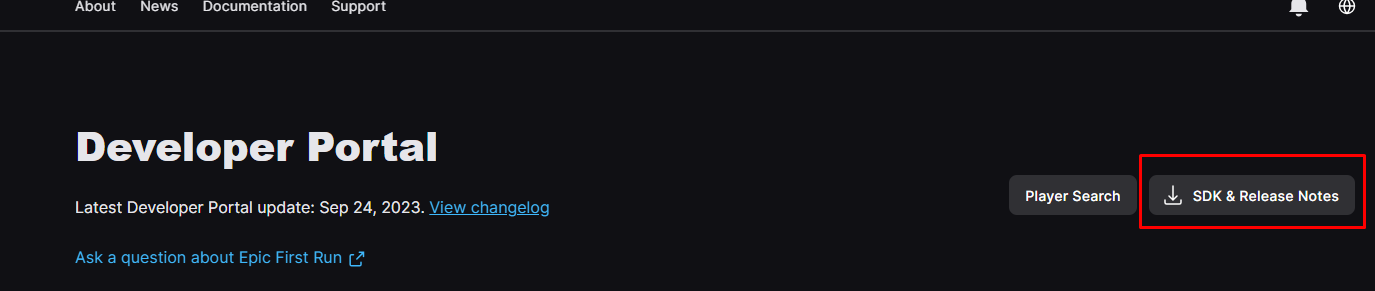
Then select the correct SDK Version
Current SDK Version: 1.16.2-CL32273396
- Copy the SDK into the EOSIntegrationKit Plugin
Open the .zip file and extract the contents of the SDK folder into YourProject\Plugins\EOSIntegrationKit\Source\ThirdParty\EIKSDK
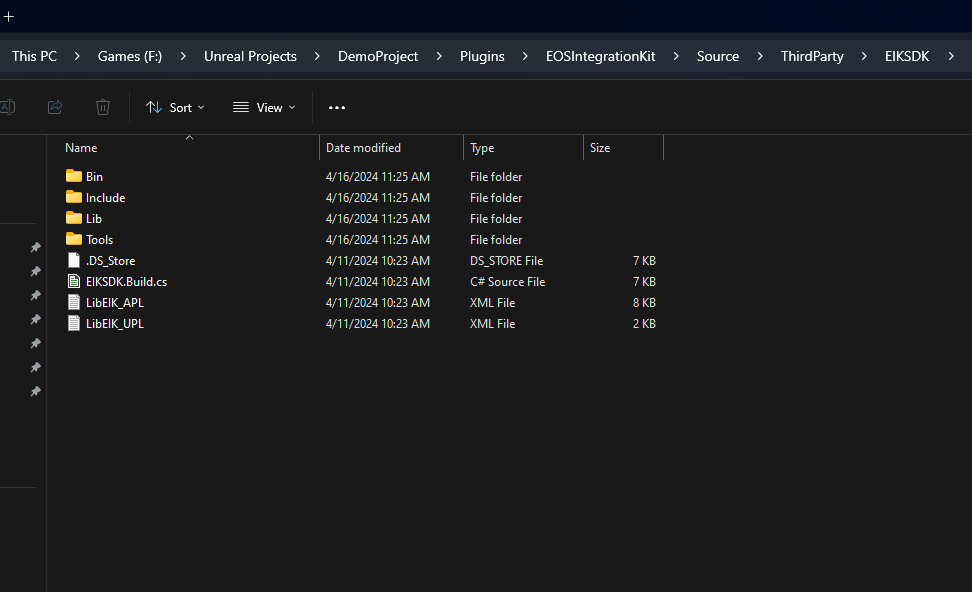
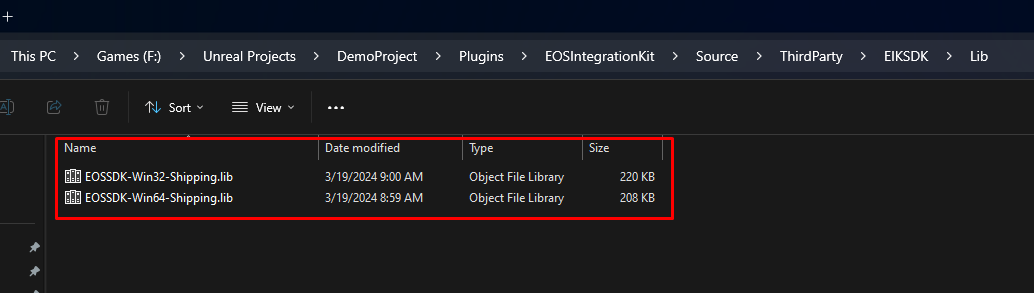
Open the Lib directory and copy the two .lib files
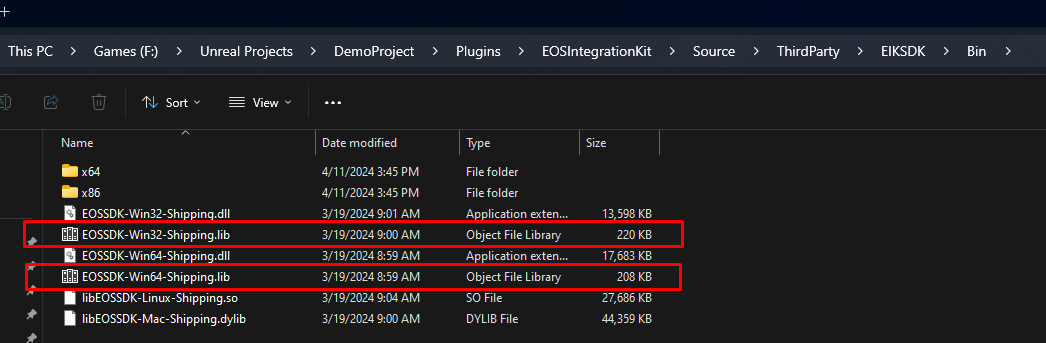
Paste them into to the Bin directory
- Generate Project Files
Follow step 4 in the Github Edition section to regenerate your project files.
- Build Project
Once you have done all the above steps, it's time to build your project.
Open up the .sln file that was generated in Step 5 and Visual Studio will open.
At the top, select 'Build' from the menu, and select Build Solution
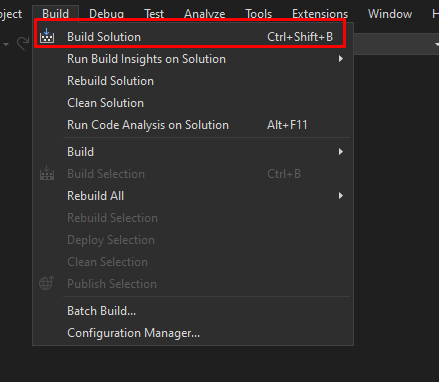
If you have no other issues in your project, the solution should build with no issues or warning.
The error list in Visual Studio is notorious for giving false positives. For reliable information make sure to check the Output Log in visual studio for any successes or failures. The output log appears as a tab next to 'Error List' in the bottom of the Visual Studio IDE. If you cannot find this window, you can enable it by using View > Output
#Upgrade Notes
This is a breaking change and you will need to follow these steps to ensure your project is updated correctly.
If you are upgrading from Plugin Version 3.1 to 3.2, you have to follow the below steps to ensure a smooth transition. The reason for this is that the plugin has been updated to use the latest EOS SDK version 1.16.2 and is a major update from the previous version. Release notes for the EOS SDK can be found here
After you have added the latest plugin to your project, either from the Marketplace or GitHub, you will notice that your project settings have been reset. This is because we have moved to use new locations for the plugin settings to support the most awaited Version 4 of the plugin which will be released soon.
To fix this, close the editor and open the
DefaultEngine.inifile located inYourProject\Configand replace the contents with the following:
Item To Replace
With
- Now open the editor and go to the
Editmenu and selectProject Settings. You will notice that the plugin settings are now located underGame -> EOS Integration Kit - If you are were earlier using the Android/IOS Settings, that now is made available under the 'Platform' section in the Artifact Settings. You can now use your Android/IOS settings from there.
- If you are using Voice Module, please follow the same steps as given in Step 4.
Done, now you have successfully upgraded your project to the latest version of the plugin.