#Configuration
So, now that you have the plugin installed, let's get started with configuration of the plugin so that you can test the game as soon as possible xD.
#Plugin Settings
Go to Project Settings and then go to Game -> EOS Integration Kit
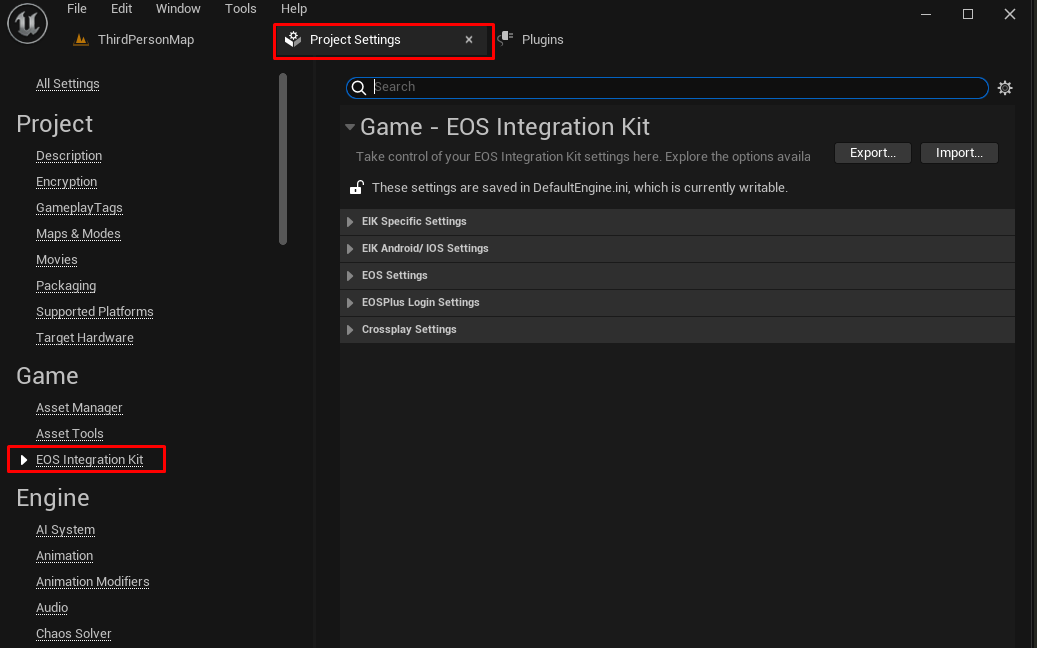
Now, go to Epic Games DevPortal and create a new product or use existing product.
#DefaultEngine.ini
As of plugin version 2.5.0 this step is no longer required.
Go to the Project Folder, then Config and open DefaultEngine.ini and set the following settings ->
Dedicated servers require a different net driver configuration, please see Multiplayer -> Dedicated Servers.
#Android/Quest Setup
- Go to Project Settings -> EIK Android/IOS Settings and set all the settings. You can get the Client ID and Client Secret from the Epic Games DevPortal.
- Now go to your project folder and go to
Config/Androidand openAndroidEngine.iniand add the following settings ->
- Done! Now you can package the game and test it on your device.